
Pictty
The good-looking native technical image viewer.
Pictty always draws your picture with the best possible algorithm: the GPU while it moves, Lanczos in linear light the moment it rests, pixel for pixel. It opens anything macOS can read, camera RAW and HDR included, and now it edits too, on its own GPU engine.
Pictty is free and open source. If it earns a place on your Mac, the Mac App Store version costs less than a coffee, and buying it supports its development. Thank you.
New in 1.6: AI Enlarge for real texture at 2× and 4×, Remove Background, Annotate with arrows, numbered steps, blur and smart redact, and Resize. All on your Mac.
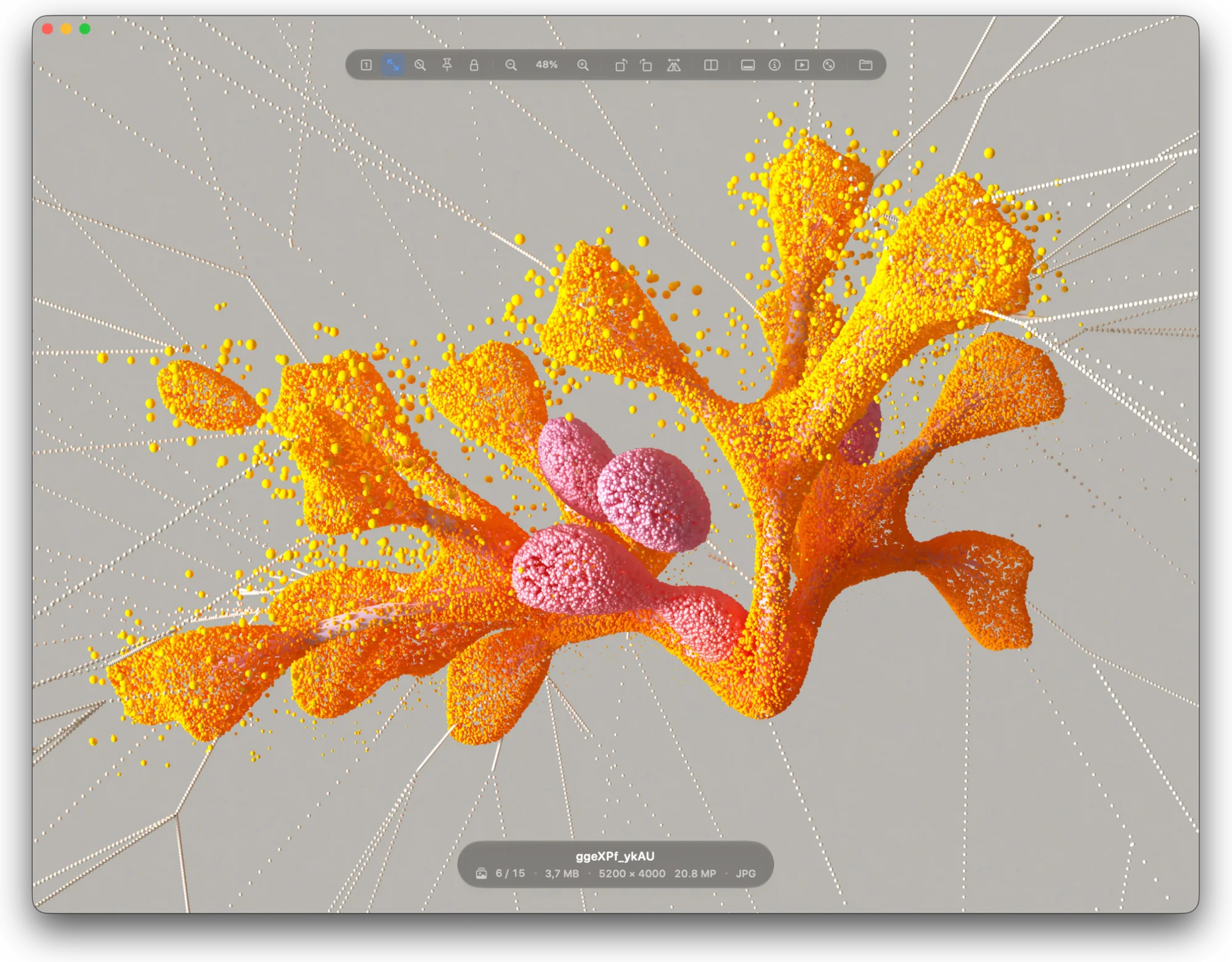
Sharp at every zoom.
Most viewers let the GPU scale the picture and stop there. That is fast, and it goes soft.
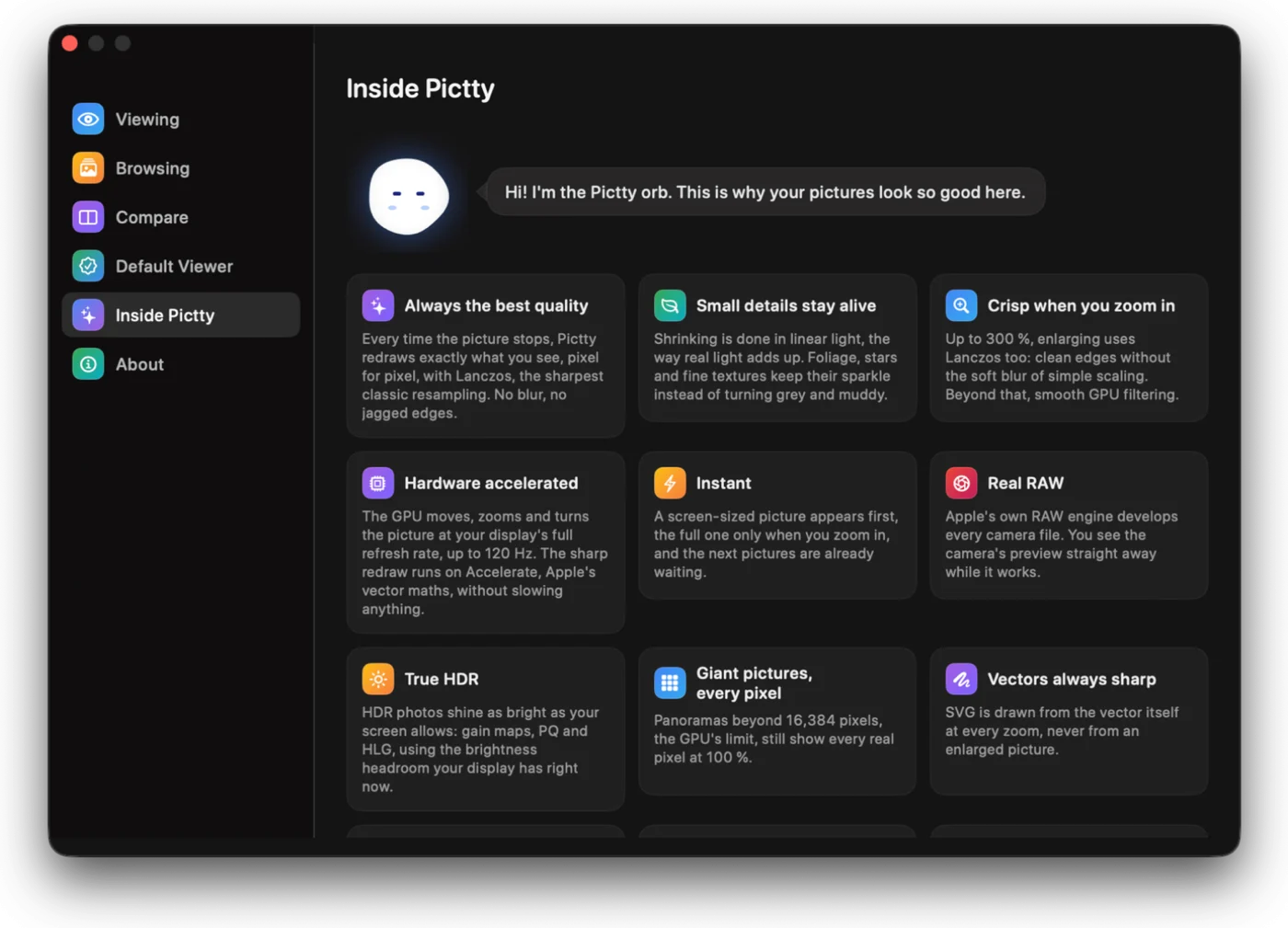
Pictty uses the GPU too, while you pinch and pan, at the full refresh rate of your display. The moment the picture rests, it redraws what you see with Lanczos: one picture pixel to one screen pixel, placed to a tenth of a pixel. Up to 300 % it enlarges with Lanczos as well, so edges stay clean.
Shrinking is done in linear light, the way light really adds up. Foliage, stars and fine texture keep their brightness instead of turning grey.
Edit on its own engine.
Press E. Light, colour and detail, live on the picture, on Pictty’s own GPU engine.
Every slider has one method, picked for what it does, and the key ones work by regions: a dark corner opens up while a face under a lamp keeps its light, and the texture inside each region stays crisp. Everything runs in linear light and 16-bit floating point, so wide colour and HDR come through untouched.
Zoom in and the edit follows, every pixel of it. Press Y to flip to the original and back.
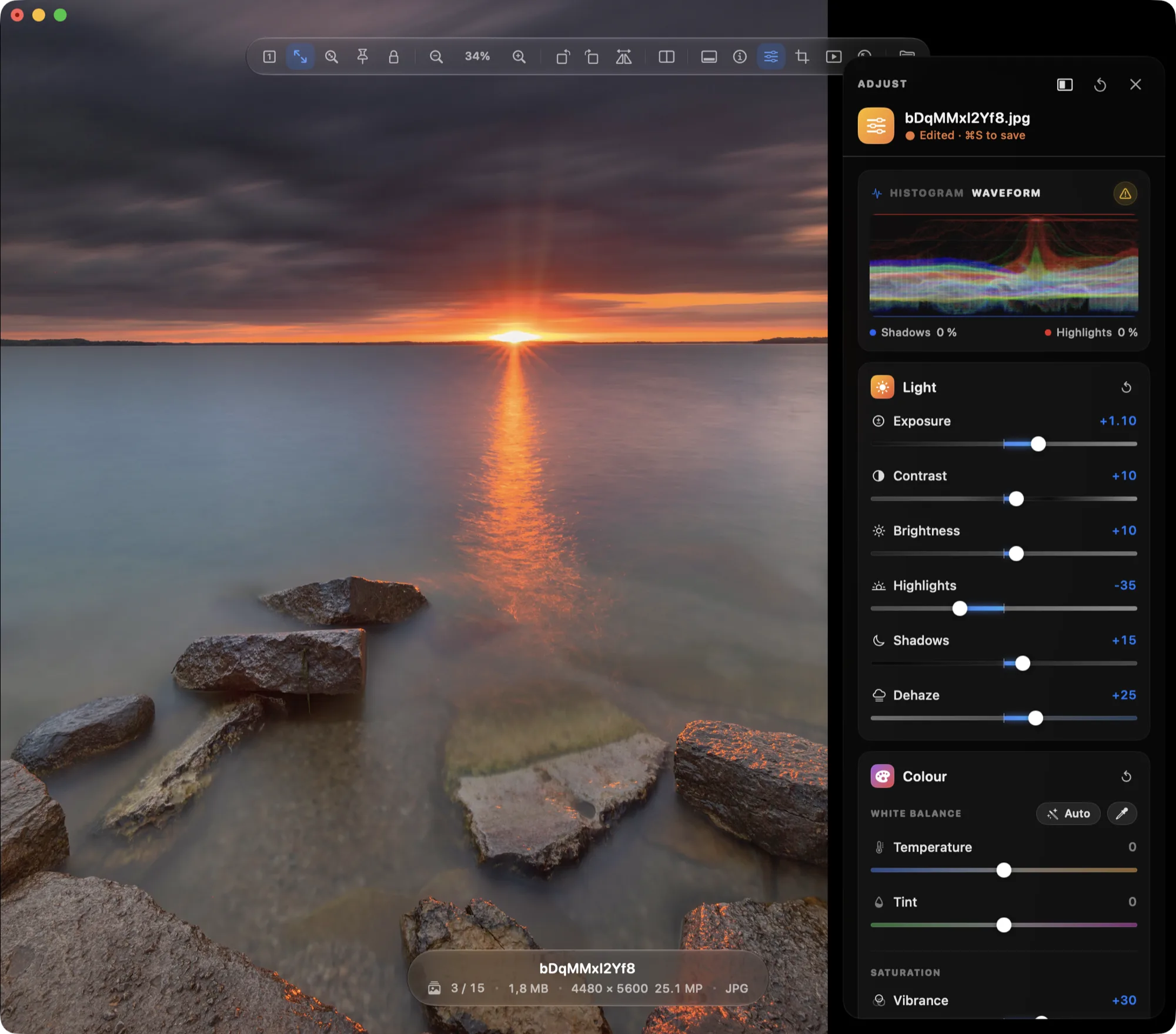
Every slider, done properly
- Exposure
- Lifts the dark regions most and leaves what is already lit alone. Night shots and backlit faces open up without burning.
- Highlights
- Pulls skies and lamps back scale by scale: detail survives at every size, with no halos and no extra noise.
- Dehaze
- Finds the haze region by region and takes it out of the light. Turned down, it adds haze where the scene is already hazy.
- White balance
- Auto finds what should be grey, and adapts like your eye: a daylight cast goes, a lamp-lit evening keeps its warmth.
- Vibrance and saturation
- Muted colours come alive while skin stays natural, colour noise stays put, and strong colours ease into what your screen can show instead of clipping.
- Texture, clarity, sharpening
- Bring out detail at three sizes, and only detail: grain is left alone and edges get no halos.
Noise, gone. Detail, kept.
Noise reduction is an AI model trained on realistic camera noise, running on your Mac’s GPU. Your pictures never leave your Mac.
Pictty measures the grain first and works at the size it needs, so fine noise goes and film grain goes too, without the plastic look. Press Auto and it sets the amount for you; a clean photo is left alone.
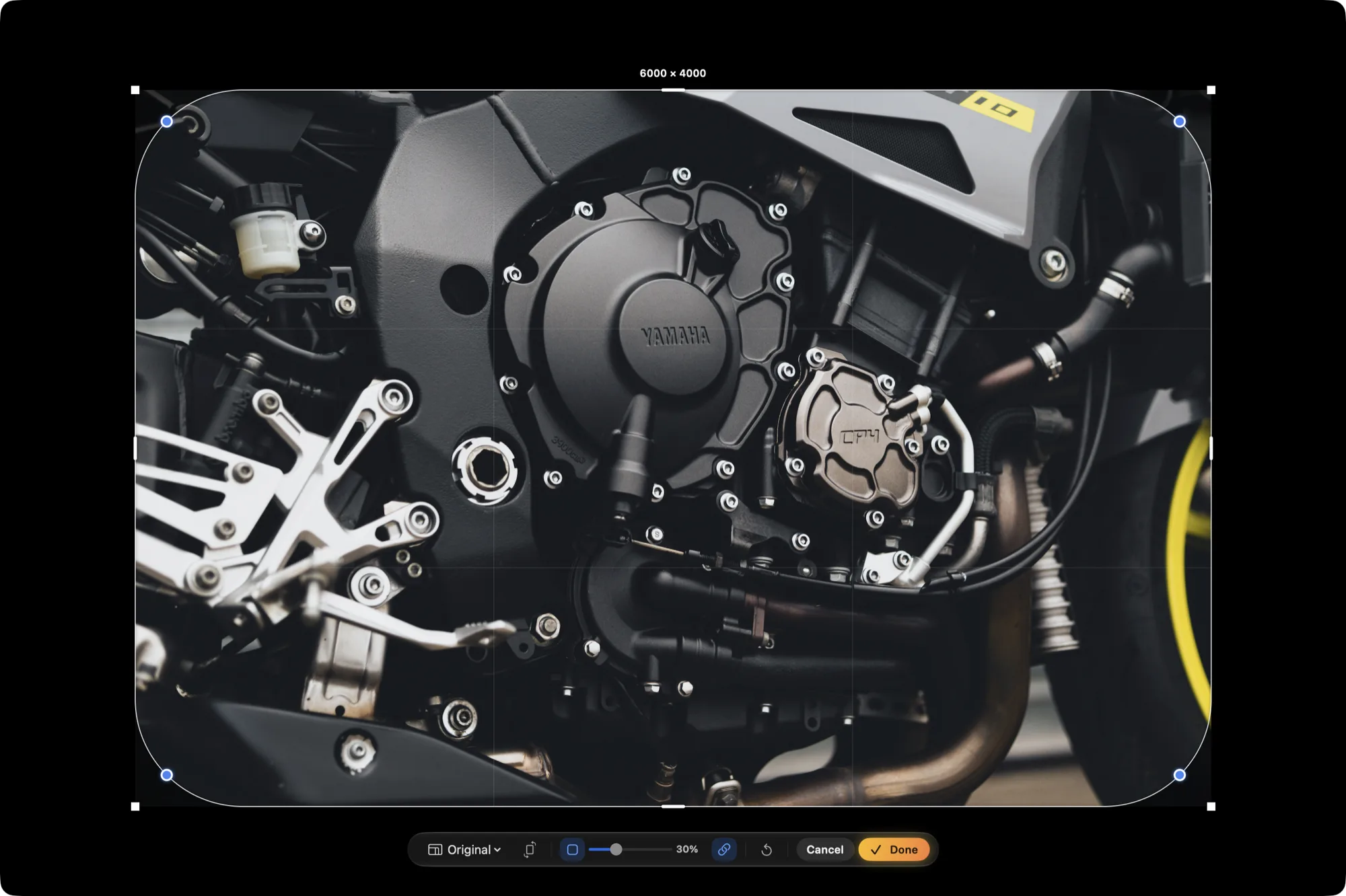
Crop, then save.
Press C. Ratios for social, screens and print are a click away, and corners can be rounded.
⌘S saves over the file in its own format and quality, so a JPEG doesn’t grow or go soft; a turn on its own is saved without touching a pixel. ⇧⌘S converts to JPEG, HEIC, AVIF, PNG, TIFF and more, and tells you how big the file will be before you save.
Print it.
Press ⌘P. You see the sheet as it will come out, on your printer’s own papers and margins, borderless ones too.
Drag the picture where you want it and it clicks onto the centre and the margins. Drag a corner to resize it, or let one button make it as large as the printer reaches on that paper.
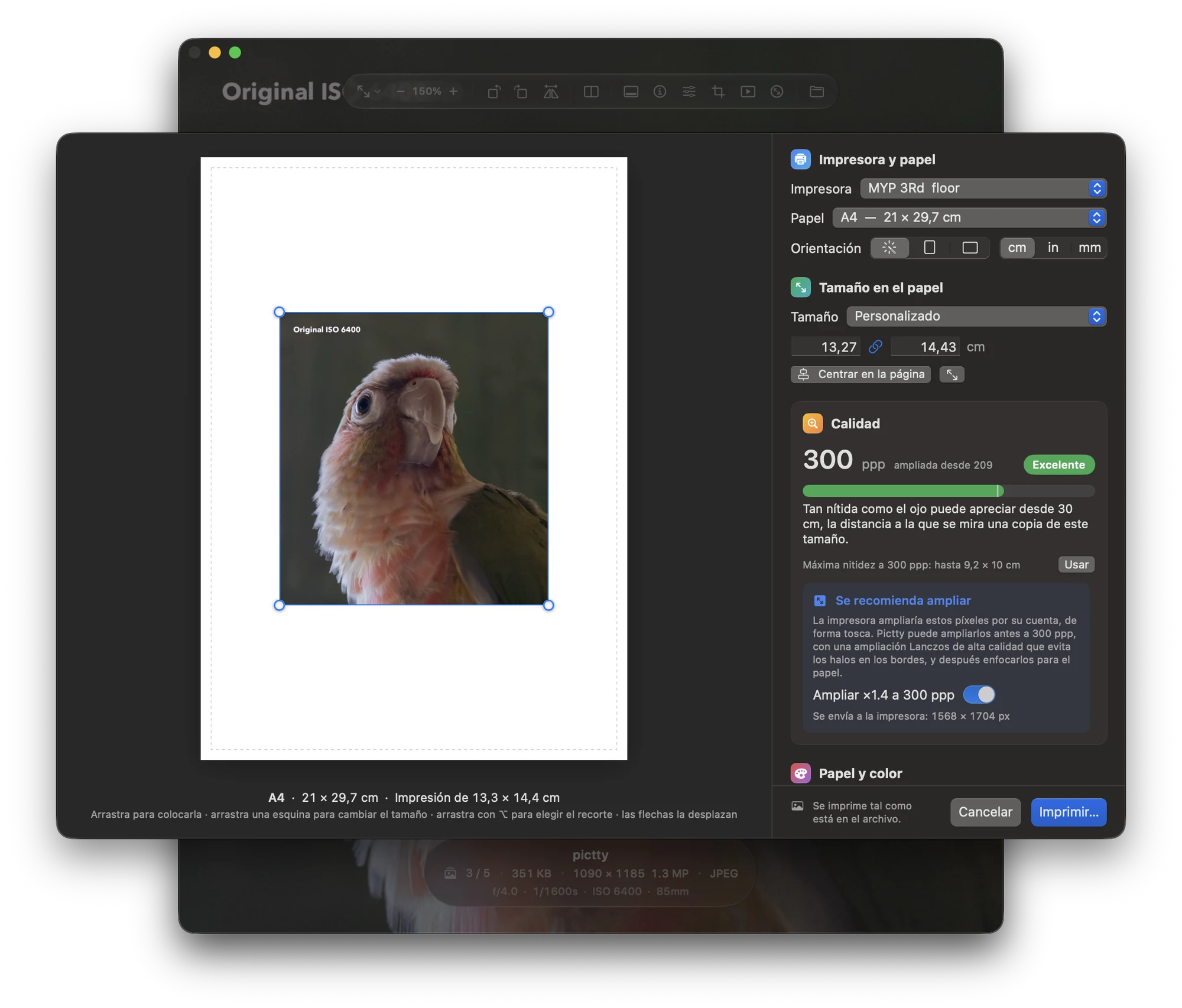
- Sizes you know
- The page fitted or filled, the sizes photo labs print, from 10 × 15 to 60 × 90 cm (4 × 6 to 24 × 36 in), or any width and height.
- Quality in plain words
- Pictty shows the ppi and says how sharp the print looks from where people stand to look at it. A 10 × 15 wants about 290 ppi; a 40 × 60 poster is fine at 150.
- Upscaling
- When a picture is short of pixels, Pictty enlarges it to 300 ppi before the printer does it more coarsely. Edges stay crisp, with no halos.
- Every pixel, with your edits
- What prints is what ⌘S would save, at full resolution. HDR is fitted to the paper, sharpening is set for glossy or matte, and the colour profile goes along. A caption can go underneath.
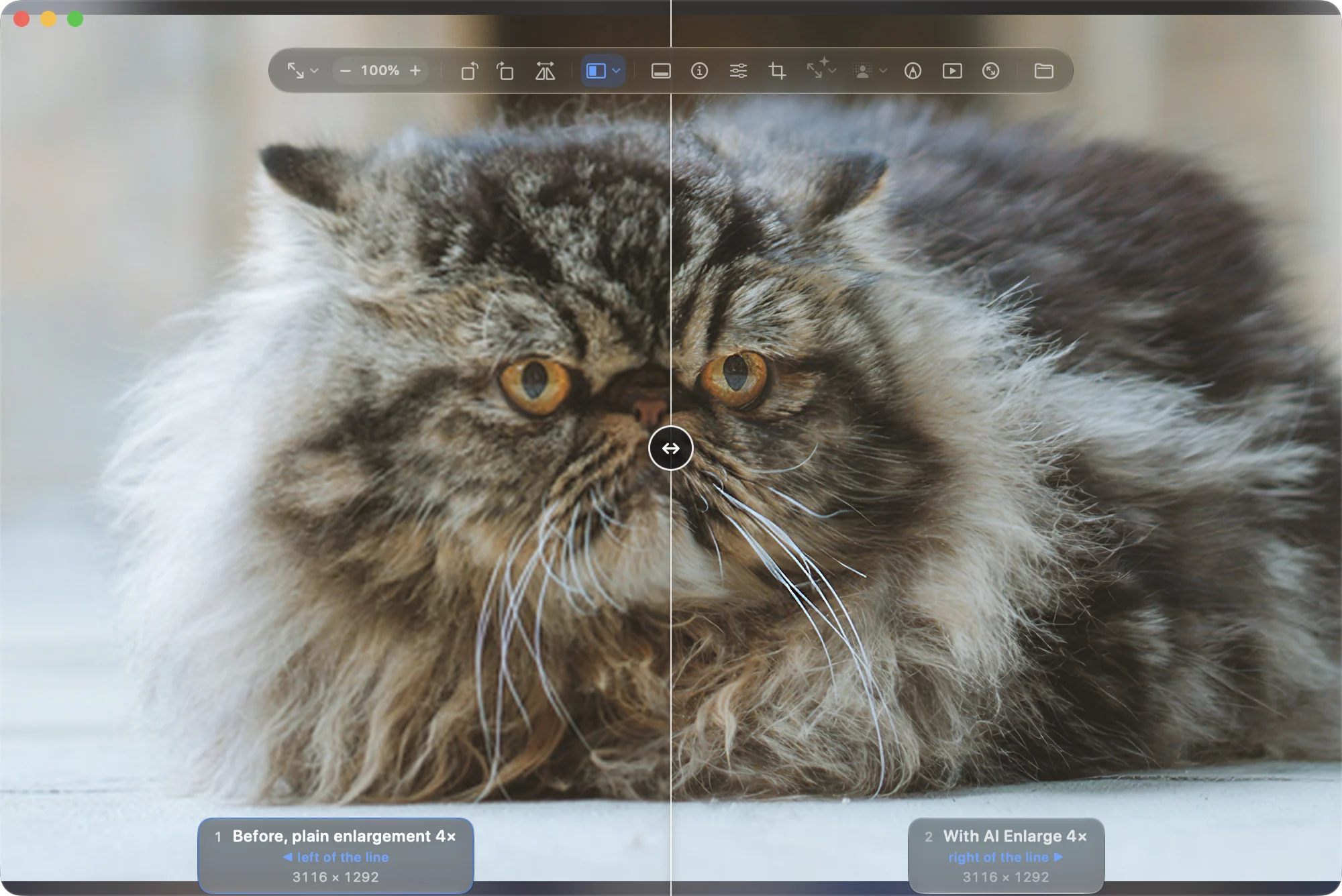
Enlarge with AI.
A small picture, 2× or 4× bigger, with texture that was not there: fur, fabric, foliage and print come back, where a plain enlargement stays soft.
The model runs on your Mac’s GPU and never sends a pixel anywhere. It keeps faces natural, it is offered for pictures up to 8 MP, where it adds real detail rather than inventing it, and 100 % means the new 100 %.
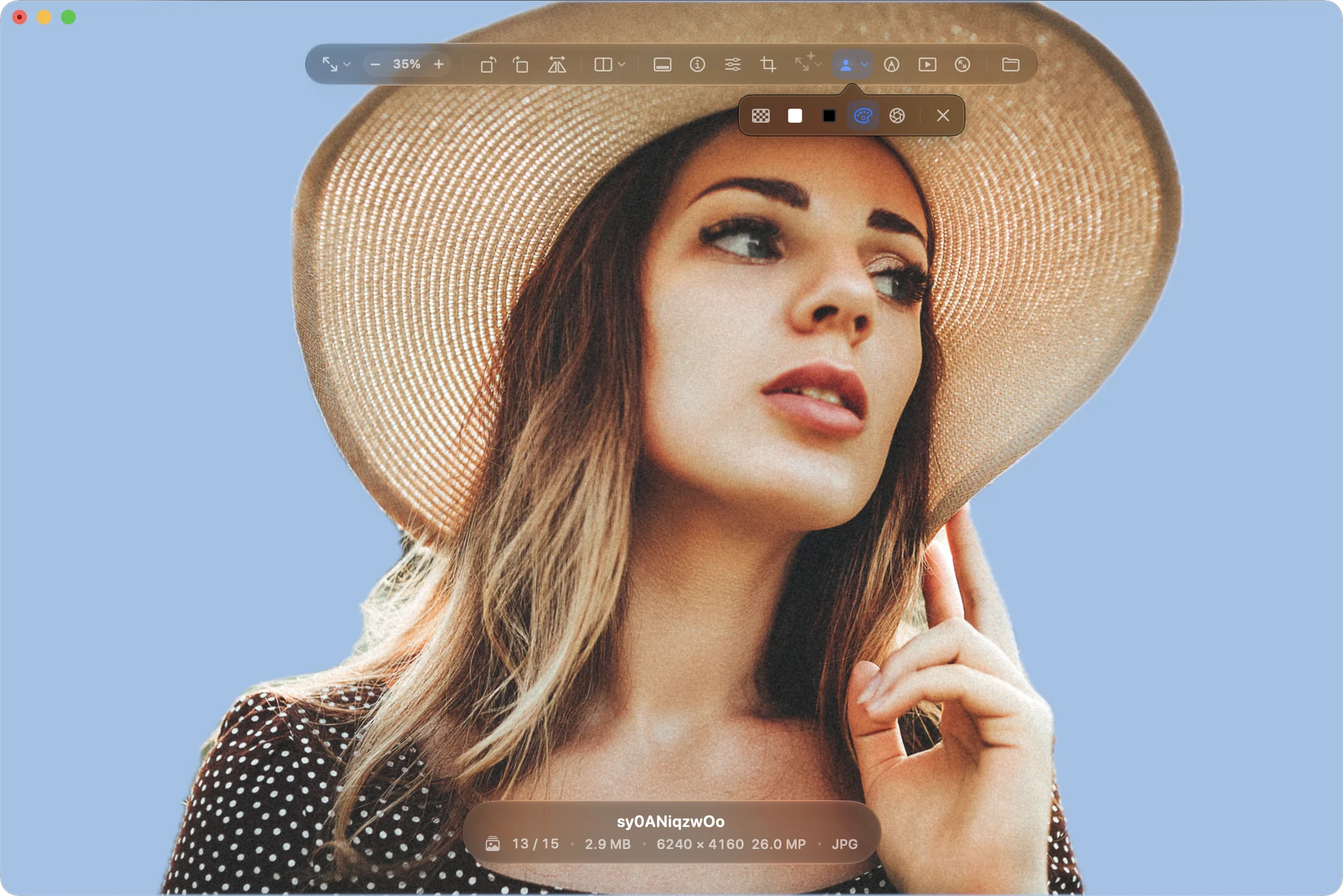
Background, gone.
One click finds the people, pets and objects, the way Photos does, and lifts them off.
Behind them: transparency, white, black, any colour, or the background itself, blurred like a portrait lens. Crop it, enlarge it, save it as a PNG with its transparency.
Point it out.
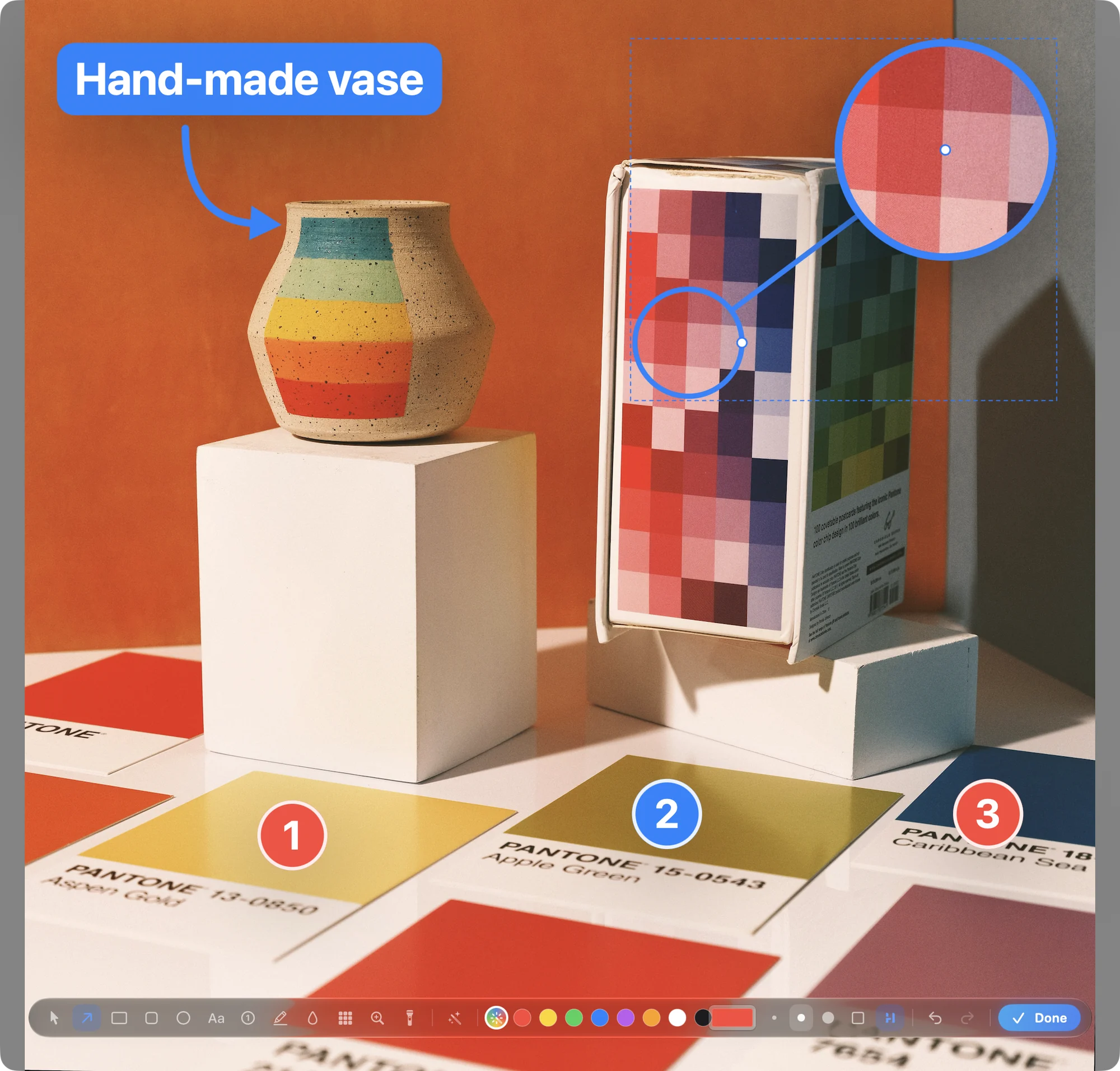
Press ⇧⌘A and an annotation bar takes the toolbar’s place: arrows you can curve, boxes, circles, text, numbered steps that renumber themselves, a highlighter, blur and censor.
A magnifier zooms into a detail, a spotlight dims everything else, and smart redact hides e-mail addresses, phone and card numbers, and faces in one click. Each mark picks a colour that stands out, and stays editable until you save.
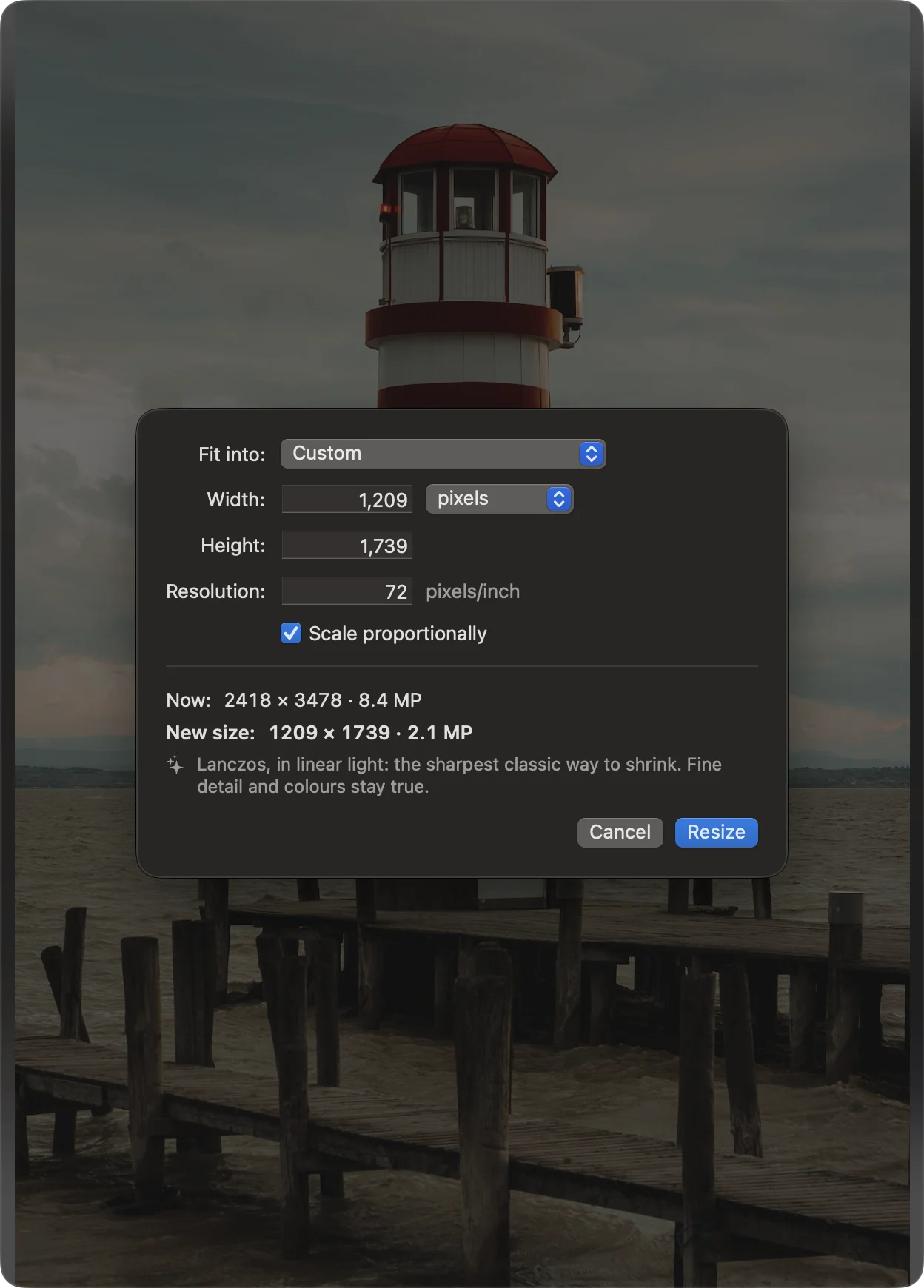
Resize, the right way.
The dialog you know, in pixels, percent, centimetres or inches. One method, the best, said rather than chosen.
Lanczos, shrinking in linear light, so fine detail keeps its brightness. When a picture gets bigger, Pictty tells you it gets bigger, not more detailed, and points you to AI Enlarge.
The engine, in short
What happens behind every picture you open.
- Huge folders, instantly
- A folder of 2,000+ photos is ready in milliseconds, and the first picture is on screen in a quarter of a second. Everything heavy runs in parallel across your Mac’s cores, so browsing never waits, and thumbnails stay light on memory however many there are.
- Quality from the first frame
- A high-quality preview, made for your screen with the best algorithms, comes first. It turns seamlessly into the full-resolution picture the moment the zoom needs it, and the next pictures are ready before you get to them. Hardware decoders where the format has them.
- Real RAW
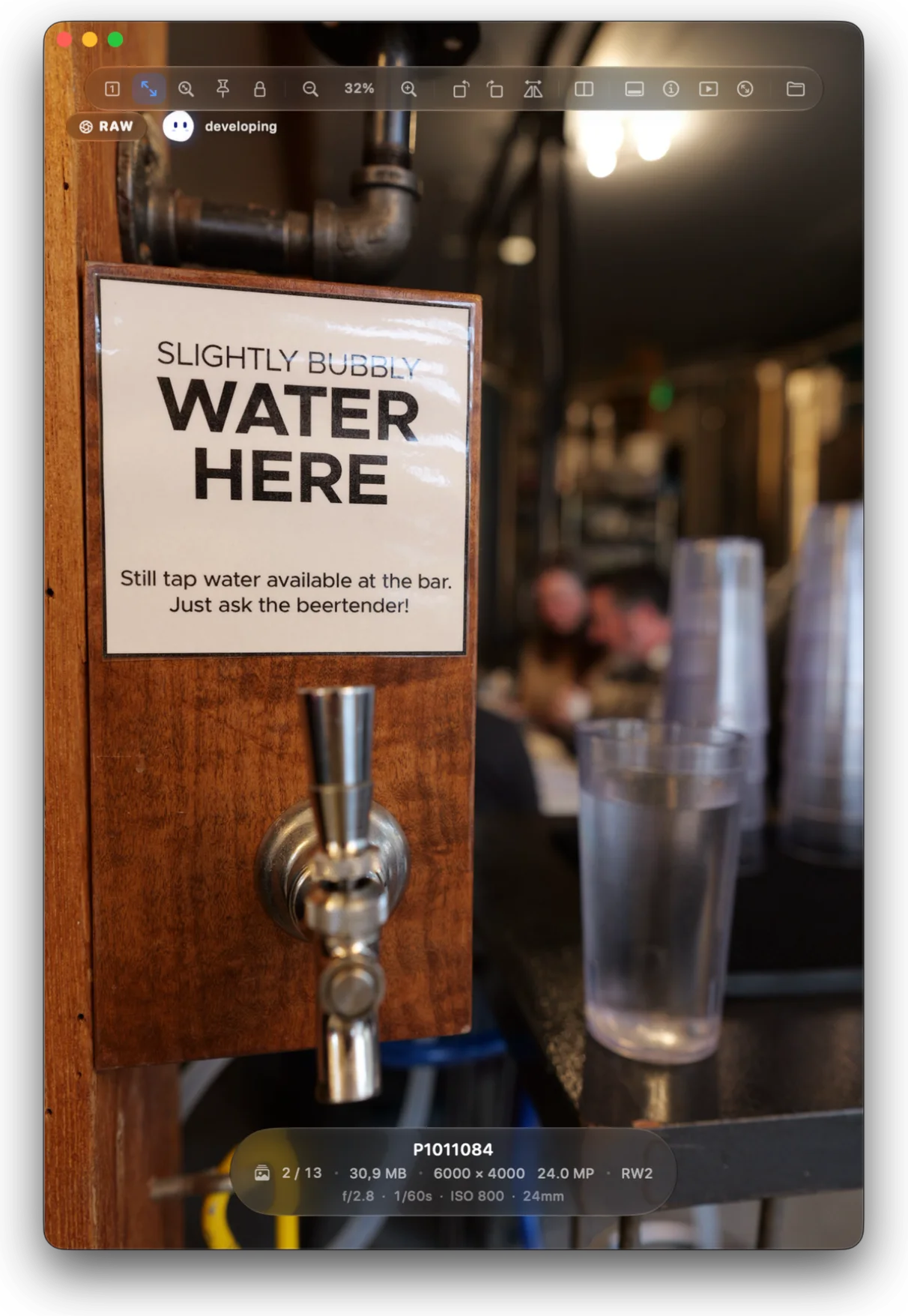
- Pictty’s hybrid neural RAW engine develops camera files from the sensor itself. The camera’s preview shows at once, with a small RAW badge and the orb, while the real develop runs.
- True HDR
- Gain maps, PQ and HLG photos shine as bright as your display allows, using the headroom it has right now.
- Giant pictures
- Past the GPU’s 16,384-pixel limit, panoramas still show every real pixel at 100 % and beyond.
- Every format
- JPEG, HEIC, AVIF, JPEG XL, WebP, PNG, TIFF, GIF, OpenEXR, PSD, SVG and RAW from hundreds of cameras. SVG is drawn from the vector at every zoom, so it is never blurry.
- True colour
- Every picture is colour-managed for your display’s own profile. Transparency shows over black, glass or a checkerboard.
Look closer.
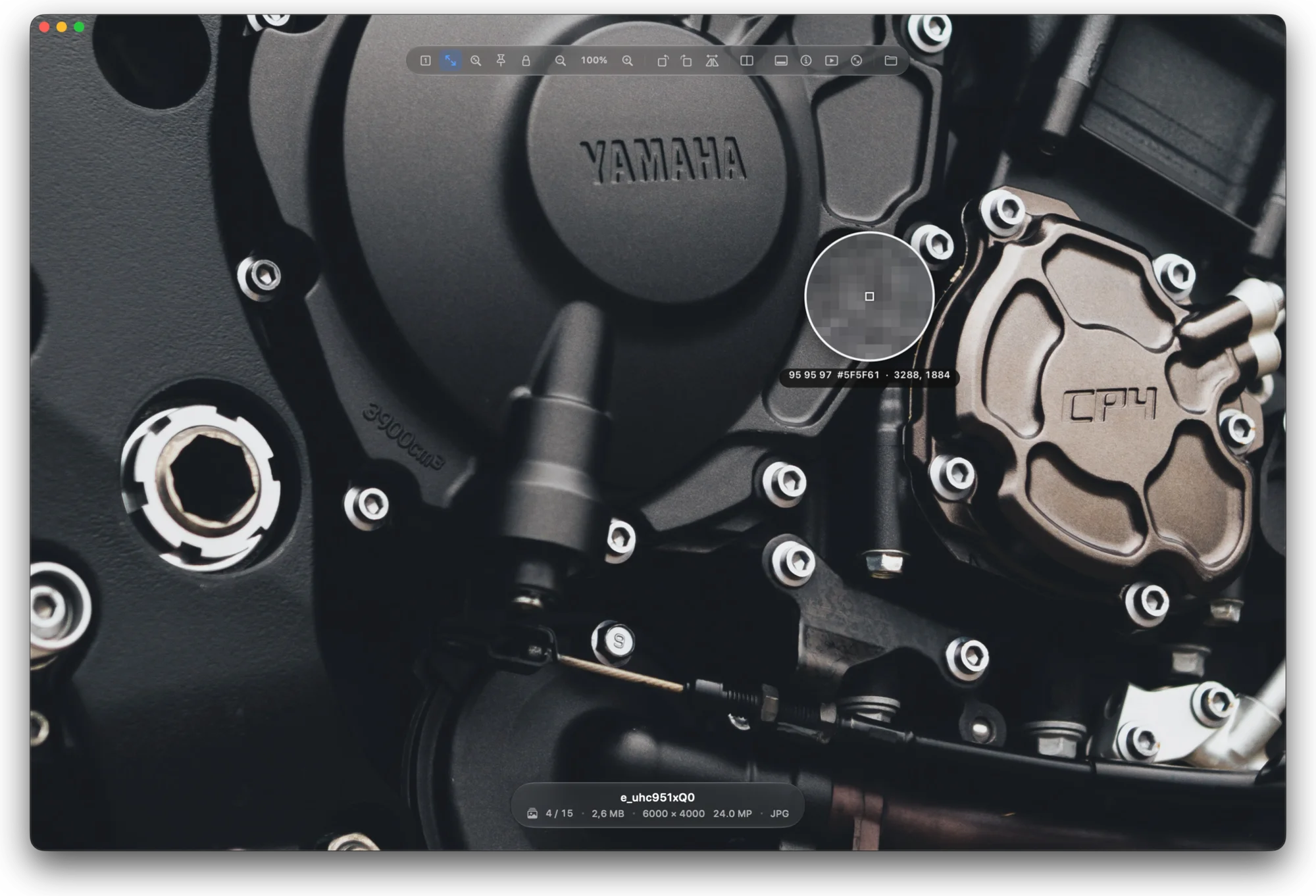
Hold ⌥ for a loupe with the exact pixel values and the hex colour. ⌥-click copies it.
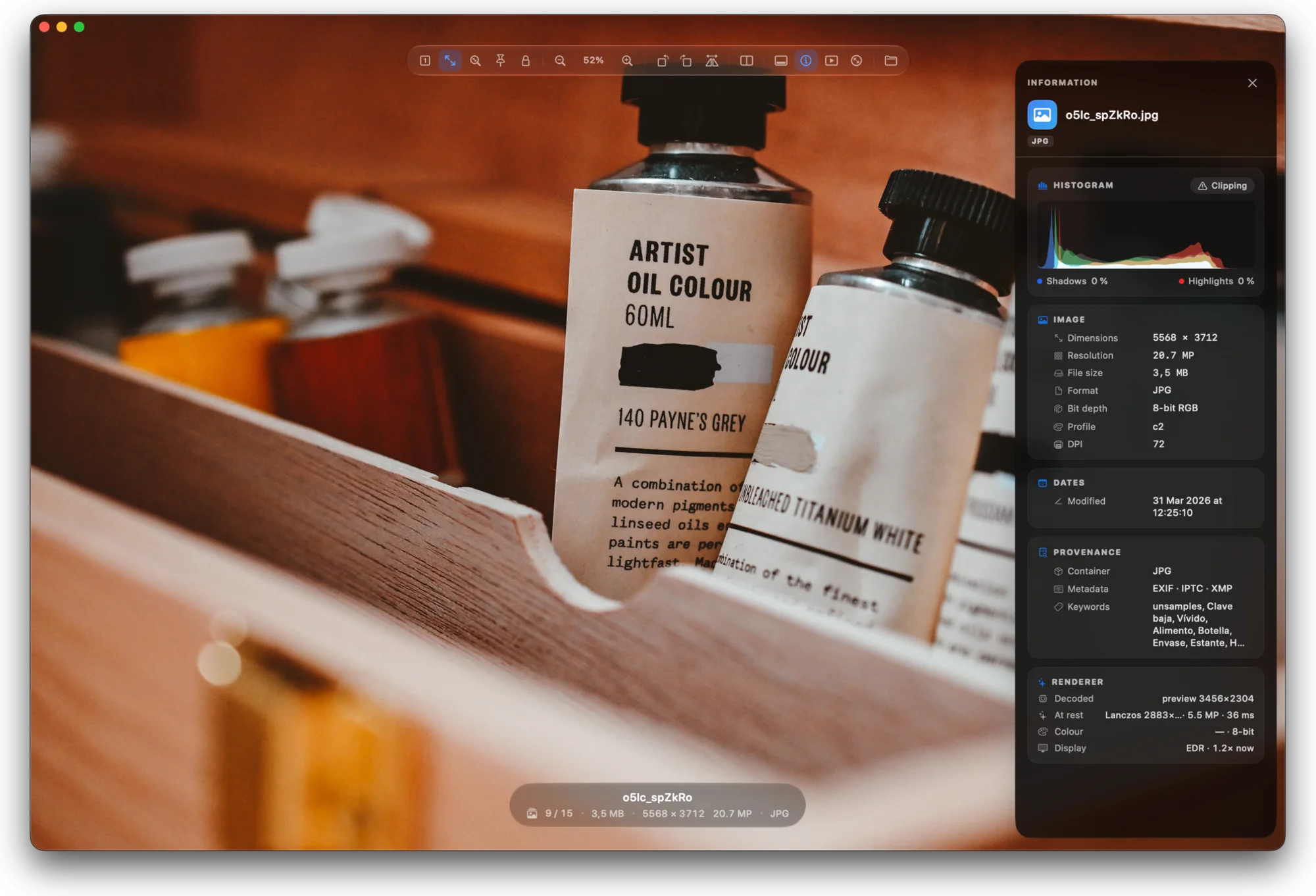
Press I for the information panel: a histogram, the camera and exposure, the size and colour profile, and where the file came from.
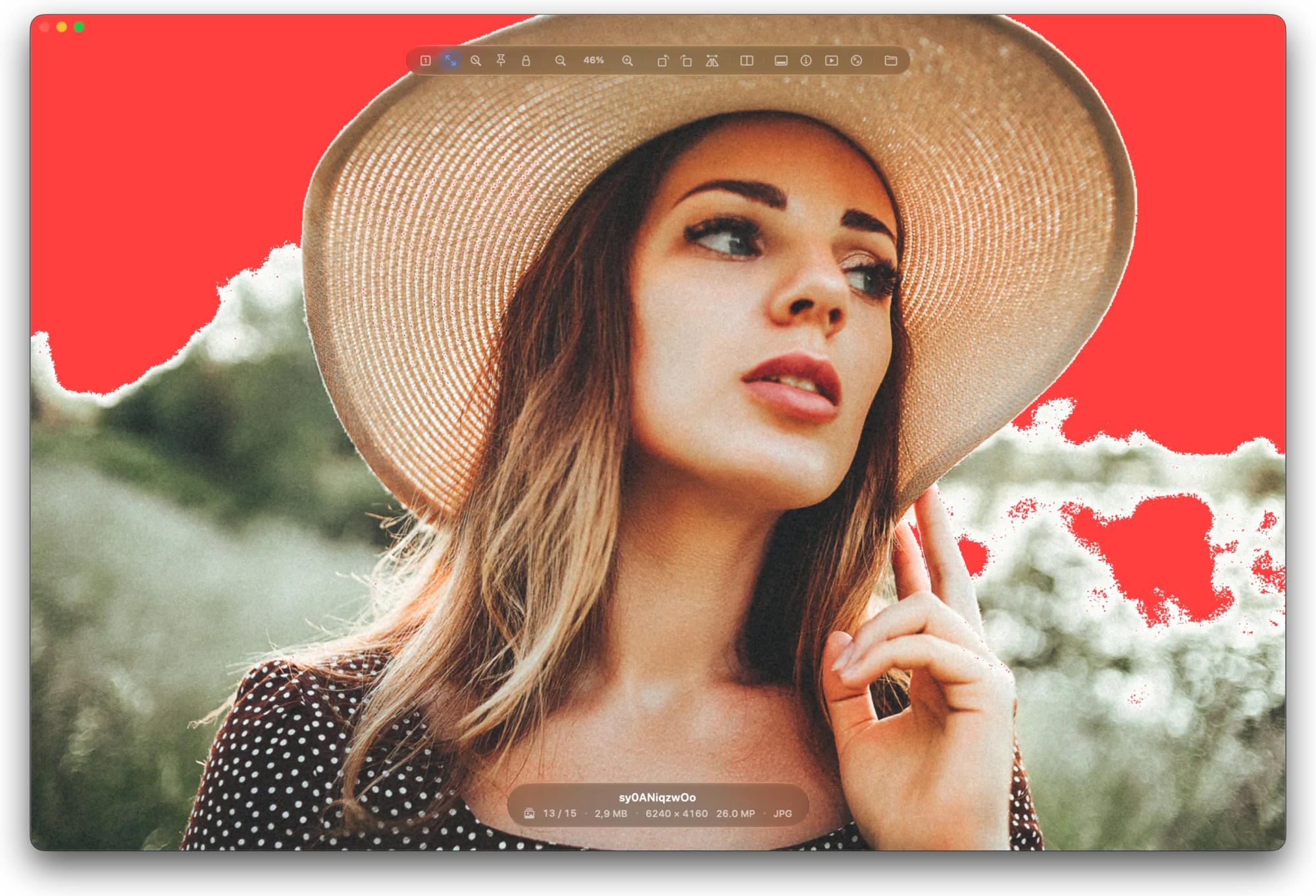
Blown? Blocked? You will see it.
Press J. Red marks highlights with no detail left, blue marks shadows that went to black.
Pictty counts a pixel as blown only when two of its channels are at the top, so a red sign at night or an orange street lamp is not a false alarm. Camera RAW files, which roll their highlights off below white, are measured where they really clip.
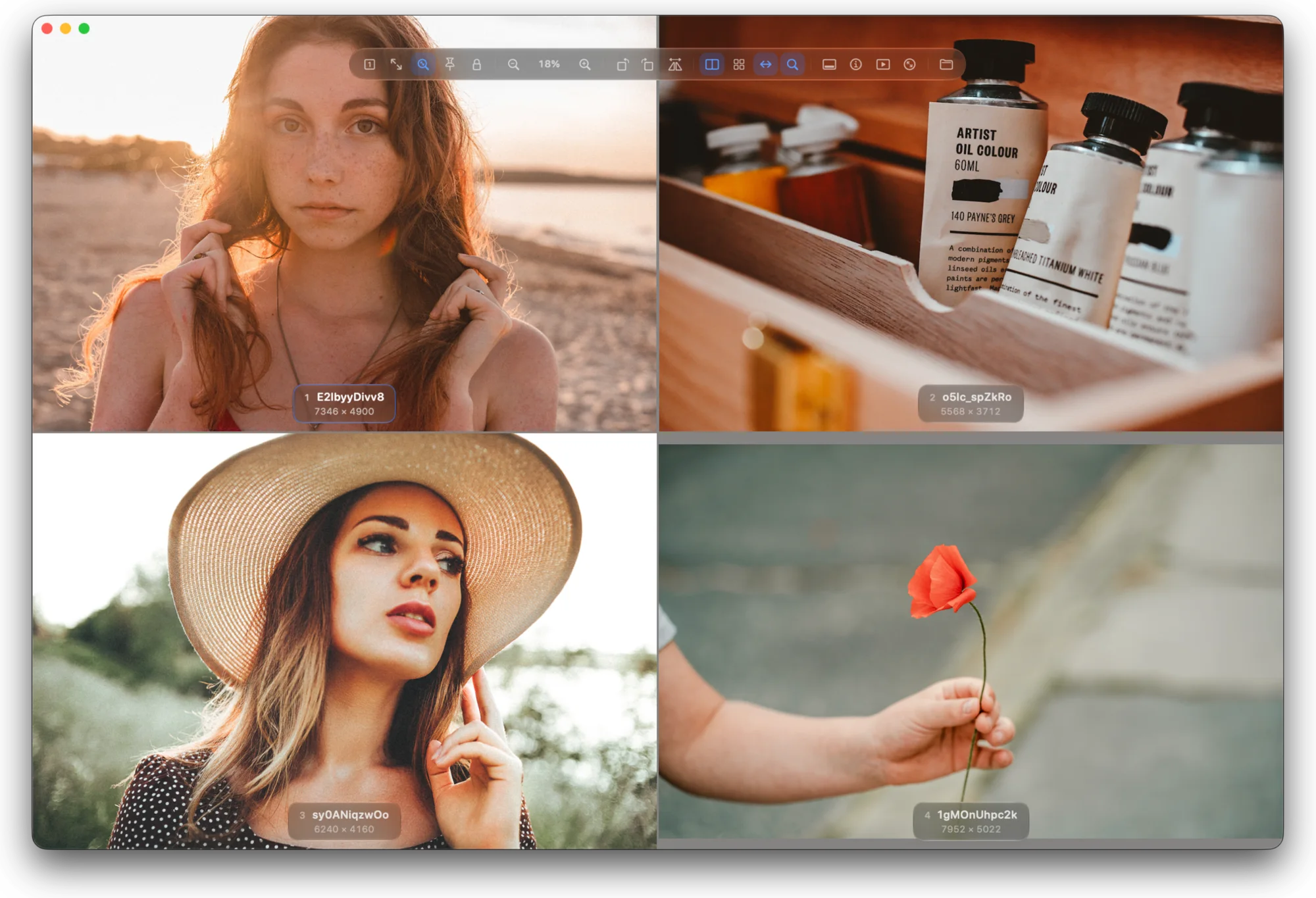
Side by side, up to four.
Put pictures side by side and look at the same detail in all of them at once.
Press D to add the next picture, and again to add more, up to four. Or ⌘-click the thumbnails you want. Side by side, stacked or in a grid.
Pan and zoom stay in sync: move one and they all move, matched by width, so the detail you are checking is in view in every pane. Press Tab to choose the pane the keys act on.
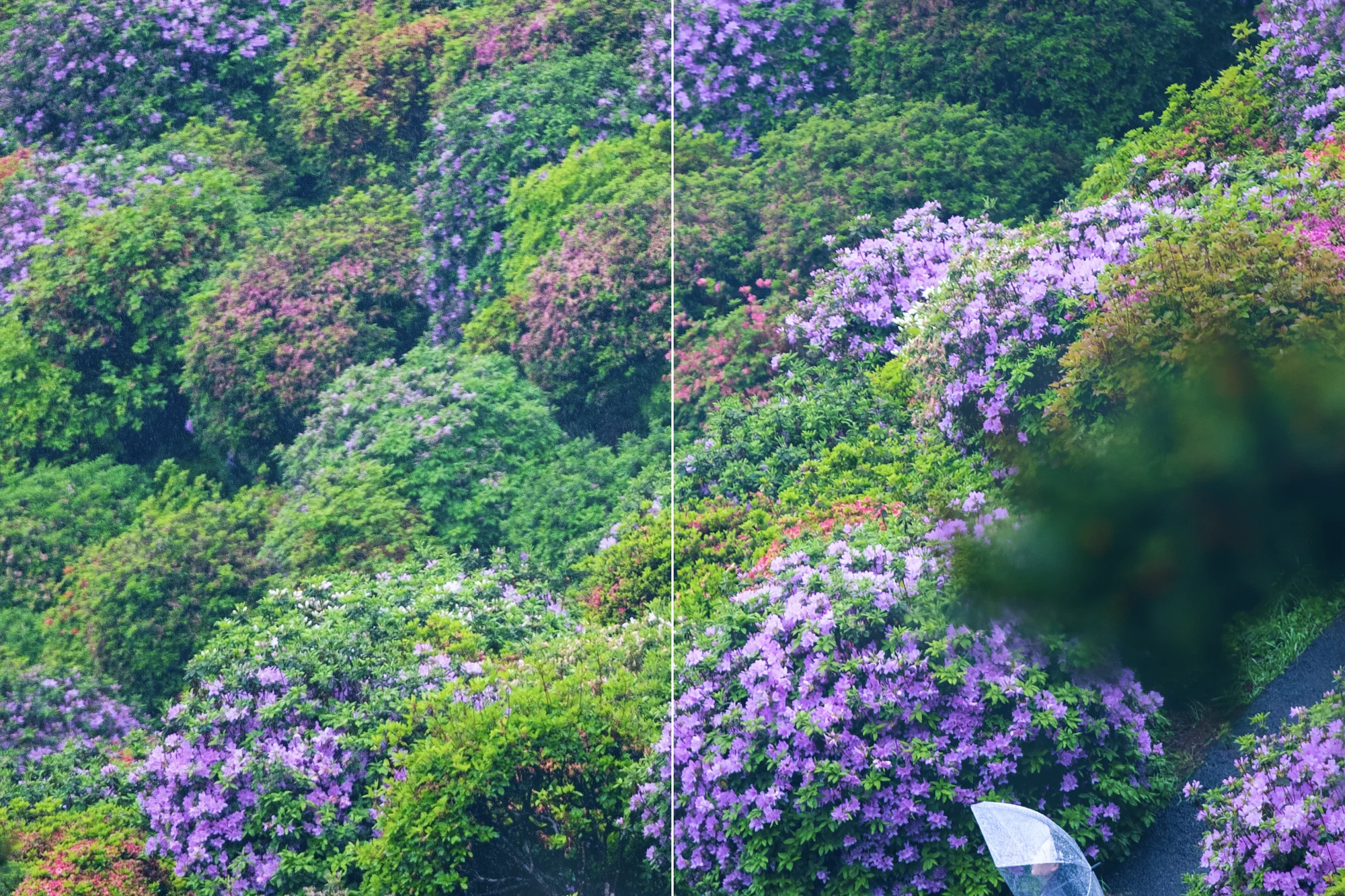
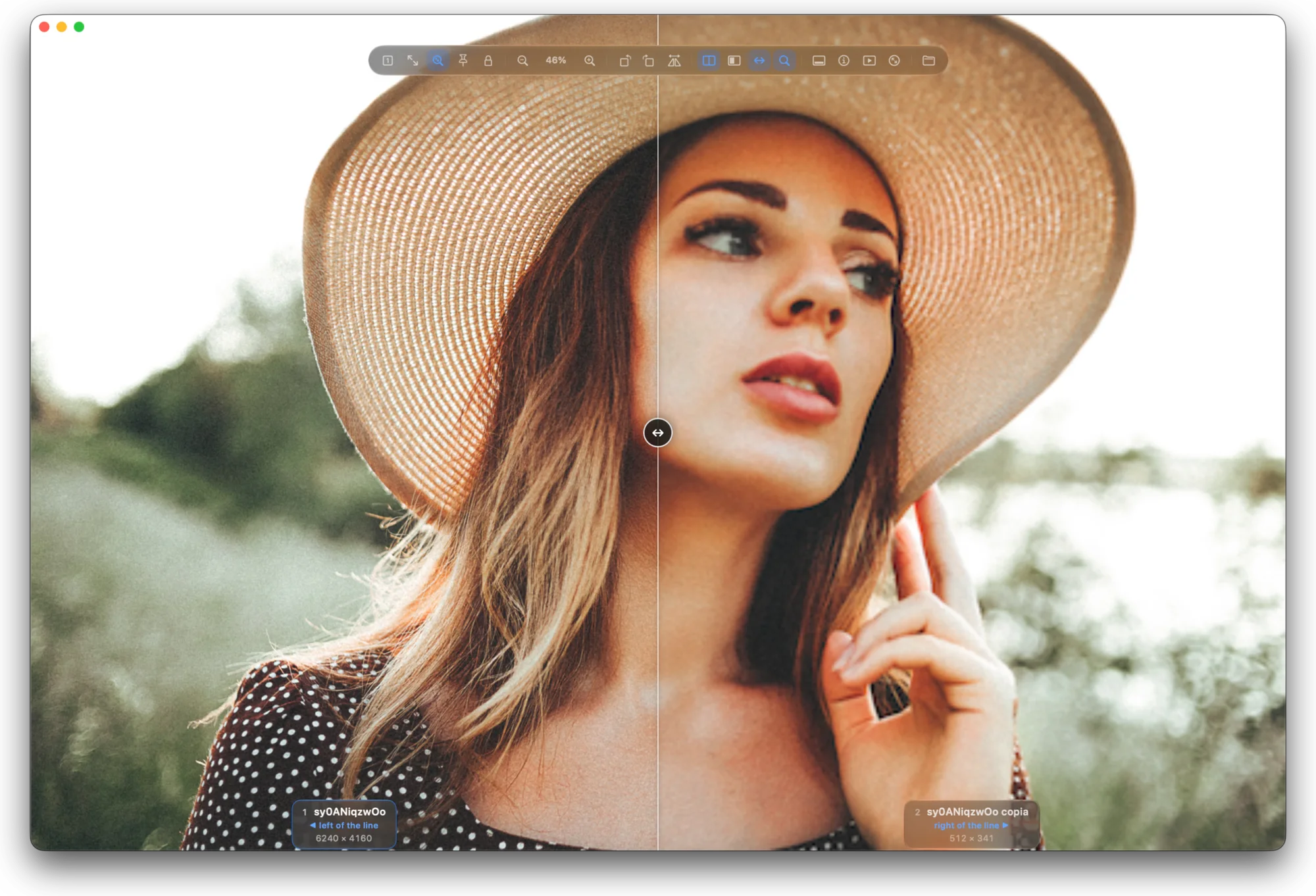
Wipe and blink.
Wipe lays one picture exactly over the other, and you drag the line between them: the best way to spot a one-pixel difference between two edits.
Blink shows one at a time. Press B to flip, and any change jumps out.
RAW, at once.
A camera RAW opens straight away with the preview the camera stored in it. A RAW badge and the orb float in the corner while Pictty’s hybrid neural RAW engine develops the real picture from the sensor itself, with lens correction, and it takes over the moment it is ready.
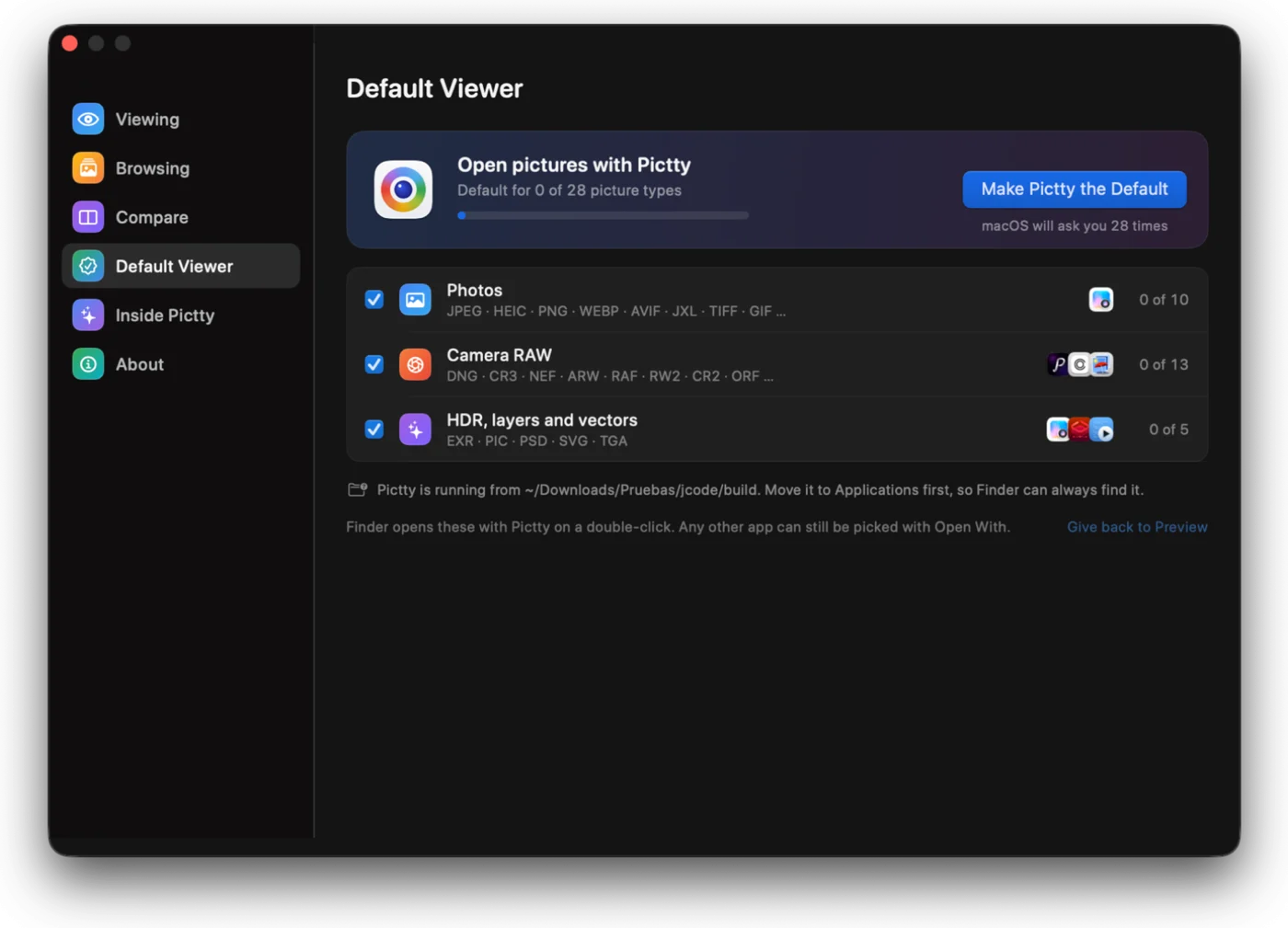
Opens from Finder.
Pictty can become the app that opens your pictures on a double-click. The orb offers it once; you pick the kinds of files, and macOS asks you to confirm each one.
A picture from a folder you already have open is selected in that window. A picture from another folder opens in a new window.
Meet the orb.
It shows up when a RAW is developing and when there is something to offer. In Settings › Inside Pictty it explains, in plain words, what the engine does with every picture.
The rest, in short
- Private
- No account, no analytics, no ads. Its only connection is a daily check for updates, which you can turn off. Noise reduction runs on your Mac, and your pictures never leave it. Read the privacy policy.
- Liquid Glass
- The toolbar, the filmstrip, the file pill and the panels float over the picture in macOS’s own glass, and get out of the way when you stop moving.
- Keyboard first
- Every action has a key. Press ? for the full list.
- Light on memory
- When macOS runs short of memory, Pictty frees everything it can decode again.
- English and Spanish
- Follows your Mac’s language, or pick one in Settings.
- Free and open source
- The code is on GitHub under the GPL-3.0 licence: read it, change it, share it.
Pictty for Mac
Version 1.6 · 44 MB · macOS 15+ · Liquid Glass. Questions: mcebrian (at) ik.me
Pictty is free and open source. If it earns a place on your Mac, the Mac App Store version costs less than a coffee, and buying it supports its development. Thank you.

Open the disk image and drag Pictty to Applications. Read the terms. Photos in the screenshots and video are from Unsplash.